Enabling Scroll with Microsoft Natural Ergonomic Keyboard 4000 in Ubuntu Linux
I recently purchased a new keyboard: Microsoft Natural Ergonomic Keyboard 4000. This has the split keyboard with a Zoom scroller in the middle, as well as various other extra buttons. All the keys worked by default in Ubuntu Natty - except the Zoom button. Rather than using it as zoom, I'd like to use it to scroll, as the scroll wheel on the mouse does. To get this working I followed the instructions given by Mauricio Faria de Oliveira. Update (2011-09-25): There are some useful comments at the end of this post, giving clarity and improvements on my instructions (unfortunately my spam filter was mis-configured and I only just noticed the comments). I've retried my instructions on a new Ubuntu 11.04 install - they still work - and posted the complete set of commands and output, with improved line wrapping and highlighting. If you want an explanation of the steps then read on below. If you just want to see the commands I used then see the complete set. Update (2011-12-30): There were several comments/questions about making it the scroller work after rebooting. After trying different approaches, Paul came up with the solution. I've applied his solution and added the steps to the end of this howto. And as an added bonus Paul also found the solution for mapping the buttons on the Microsoft Wireless Natural Mouse 6000 to different commands - check out his thread on Ubuntu Forums. The problem is that the Zoom button by the keyboard produces keycodes (418, 419) higher than X11 supports (255). Hence the software EvRouter is used to handle this special case: whenever such a keycode is received from the keyboard, map it to an action that X11 can understand (i.e. the action for pressing moving the scroll wheel on the mouse up/down). To get continuous scrolling while holding the Zoom button in one position, Mauricio has created patch for evrouter that allows for repeat key presses. Below are the detailed steps I performed, based mainly on the instructions and comments on Mauricio's blog as well as some hints for re-configuring using Automake, to get the Zoom button working as a scroller. I performed it on a new install of Ubuntu Natty 11.04. Download EvRouter v0.4 source code and patch provided by Mauricio. Several packages are needed to compile EvRouter. Install them:$ sudo apt-get install automake libtool libX11-dev libxtst-devAssuming you are in the directory where the EvRouter source code and patch are located, unpack them both and apply the patch (note that the patch downloaded as a .tar.gz file with rather long random name):
$ tar xzf evrouter_0.4.tar.gz
$ tar xzf gist754395-1ddb698f1bd8b762416fafba17431f3a2b8ebc60.tar.gz
$ mv gist754395-1ddb698f1bd8b762416fafba17431f3a2b8ebc60/evrouter-0.4_with_key_repeats_option.patch \
evrouter-0.4/
$ cd evrouter-0.4
$ patch -p1 < evrouter-0.4_with_key_repeats_option.patch
patching file src/action_xbutton.c
patching file src/cmdline.c
patching file src/cmdline.h
The current version of EvRouter is configured to use Automake v1.10, but v1.11 is installed. So before compiling EvRouter we need to update the references to v1.11 and re-configure:
$ rm compile
$ ln -s /usr/share/automake-1.11/compile
Open the
am__api_version variable from 1.10 to 1.11.
Now re-configure, compile and install:
$ aclocal
acinclude.m4:9: warning: underquoted definition of jm_CHECK_TYPE_STRUCT_UTIMBUF
acinclude.m4:9:   run info '(automake)Extending aclocal'
acinclude.m4:9:   or see http://sources.redhat.com/automake/automake.html#Extending-aclocal
$ libtoolize --force
libtoolize: putting auxiliary files in `.'.
...
libtoolize: Consider adding `-I m4' to ACLOCAL_AMFLAGS in Makefile.am.
$ autoconf
$ autoheader
$ automake --add-missing
configure.ac:23: installing `./config.guess'
configure.ac:23: installing `./config.sub'
$ ./configure
checking build system type... x86_64-unknown-linux-gnu
...
config.status: executing depfiles commands
$ make
make  all-recursive
...
make[1]: Leaving directory `/home/sgordon/Downloads/evrouter-0.4'
$ sudo make install
Making install in src
...
make[1]: Leaving directory `/home/sgordon/Downloads/evrouter-0.4'
EvRouter should now be installed and ready to run. It reads the file
"Microsoft Natural® Ergonomic Keyboard 4000" \
"/dev/input/by-id/usb-Microsoft_Natural®_Ergonomic_Keyboard_4000-event-kbd" none key/418 "XButton/4"
"Microsoft Natural® Ergonomic Keyboard 4000" \
"/dev/input/by-id/usb-Microsoft_Natural®_Ergonomic_Keyboard_4000-event-kbd" none key/419 "XButton/5"
The rules match a device (the keyboard) and some event produced by the device (key press identified by number 418) and map it into an event that X11 can understand. In this case the press of XButton/4, i.e. the up movement on the mouse scroll wheel. To access the keyboard device using EvRouter, the normal user (you) needs permissions (replace
sgordon with your username):
$ sudo chown sgordon /dev/input/by-id/usb-Microsoft_Natural®_Ergonomic_Keyboard_4000-event-kbdNow test that everything works by running EvRouter in debug mode (-d option):
$ evrouter -d /dev/input/by-id/usb-Microsoft_Natural®_Ergonomic_Keyboard_4000-event-kbd
device  0: /dev/input/by-id/usb-Microsoft_Natural®_Ergonomic_Keyboard_4000-event-kbd: \
Microsoft Natural® Ergonomic Keyboard 4000
Display name: :0.0
Moving the keyboard zoom key up should produce something similar to:
Window "(null)": # Window title
# Window "(null)": # Resource name
# Window "(null)": # Class name
"Microsoft Natural® Ergonomic Keyboard 4000" \
"/dev/input/by-id/usb-Microsoft_Natural®_Ergonomic_Keyboard_4000-event-kbd" \
none key/418 "fill this in!"
And down:
Window "(null)": # Window title
# Window "(null)": # Resource name
# Window "(null)": # Class name
"Microsoft Natural® Ergonomic Keyboard 4000" \
"/dev/input/by-id/usb-Microsoft_Natural®_Ergonomic_Keyboard_4000-event-kbd" \
none key/419 "fill this in!"
Update: If this doesn't work, then try another id of the Zoom button event. In the directory
$ sudo evrouter -r /dev/input/by-id/usb-Microsoft_Natural®_Ergonomic_Keyboard_4000-event-kbd
device  0: /dev/input/by-id/usb-Microsoft_Natural®_Ergonomic_Keyboard_4000-event-kbd: \
 Microsoft Natural® Ergonomic Keyboard 4000
Display name: :0.0
Parsed 2 rules, 144 bytes
EvRouter is now running (as a daemon in the background). Use the zoom button to test it in a browser or terminal. If you want to change the actions the Zoom button performs (instead of scrolling), then replace the XButton/4 and XButton/5 in the
$ xmodmap -pkRead the man page for EvRouter for more info about the rules, including how to match the action to specific windows (i.e. perform different actions in Firefox and Terminal). Finally, lets make the scroller automatically work after a reboot. The last sudo evrouter -r ... command above needs to be run upon boot (more precisely, after X starts). Thanks to the comments by Paul the steps are to first allow your user to run evrouter as sudo without prompting for a password and then add the evrouter command to the list of startup applications. The following allows a user (in this case, sgordon - change to your username) to execute the evrouter program without prompting for the sudo password.
sgordon ALL = NOPASSWD: /usr/local/bin/evrouterIt needs to be added to the /etc/sudoers file, or as I did it, to its own file, such as evrouter, in the /etc/sudoers.d/ directory (you can use the directory approach if the directory /etc/sudoers.d/ already exists, otherwise add the line to the end of the /etc/sudoers file using visudo). Below is the output after I created and edited the file /etc/sudoers.d/evrouter:
$ cd /etc/sudoers.d/
$ ls
evrouter  README
$ sudo cat evrouter
sgordon ALL = NOPASSWD: /usr/local/bin/evrouter
Now when you execute evrouter with sudo privileges you will NOT be prompted for a password. Try it in a new terminal to check that it works. Next add the sudo evrouter -r ... command to the Startup Applications. Call it what you like. Below is a screenshot after I've added it:
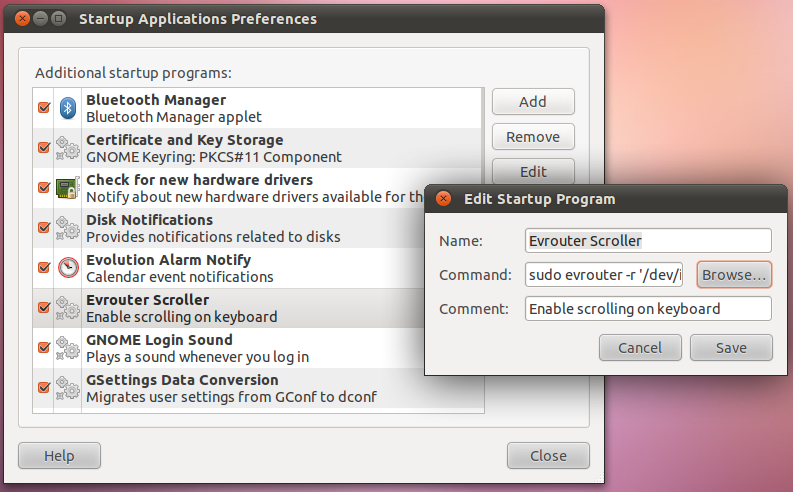 Be careful with the quotes. Its not shown in the above image but the exact command is:
sudo evrouter -r '/dev/input/by-id/usb-Microsoft_Natural®_Ergonomic_Keyboard_4000-if01-event-kbd'Now reboot and if all's well scrolling should work automatically!
Created on Tue, 19 Jul 2011, 10:28pm
Last changed on Thu, 17 May 2012, 12:11pm